Email or eyeView? Approving packaging, labels and tags
Artwork arrives by email. The customer replies, “adjust the text on the back.” Design returns another PDF. Later, someone says “approved,” but the team still needs to establish which attachment that response refers to. For packaging, labels and tags, managing those connections is part of approval work.
Email also allows remote approval. The difference with remote approval in eyeView is how the file, comments, versions and decisions are connected. To choose a workflow, look at what happens between the first delivery and the artwork's release.
1. Email works well as a communication channel
Email is familiar to customers, agencies and suppliers. It helps introduce a job, agree deadlines, send references and announce that a new proof is available. A simple review with few participants and a clearly identified version may fit a team's routine.
Teams can also share links instead of attachments. Outlook's documentation distinguishes sending a copy from sharing a file through OneDrive. Using email therefore does not necessarily mean distributing independent copies.
The challenge comes when someone must consolidate messages, check attachment references and reconstruct each component's status. That coordination takes place even when it is not listed as a formal task.
2. In eyeView, a comment points to the artwork
A request such as “make this bigger” may require another conversation when the element is not identified. Screenshots and annotated PDFs help, but separately delivered references still need to stay connected to the right version.
With eyeView's remote approval workflow, the reviewer opens a proof in the browser and adds notes directly to the artwork. The visual reference accompanies the comment. As described for the product, customers can use their link without creating an account.
This makes it easier to point to a name, area or layout detail. The team must still describe the expected result: a precisely placed comment cannot replace a clear instruction or settle a content question on its own.
3. A new version needs another check
In an attachment-based workflow, filenames such as “final,” “final corrected” and “final approved” rely on everyone following a convention. The team must also agree which file will serve as the reference when the customer checks a correction.
eyeView Revision provides file comparison, including side-by-side views and pixel differences. These tools support checks between the previous delivery and the corrected artwork.
Consider a label where the request was to change a single phrase. The next review should check that change and investigate other differences found. Comparison helps locate changes; the responsible reviewers decide which are intentional and acceptable.
4. Packaging, labels and tags need their own context
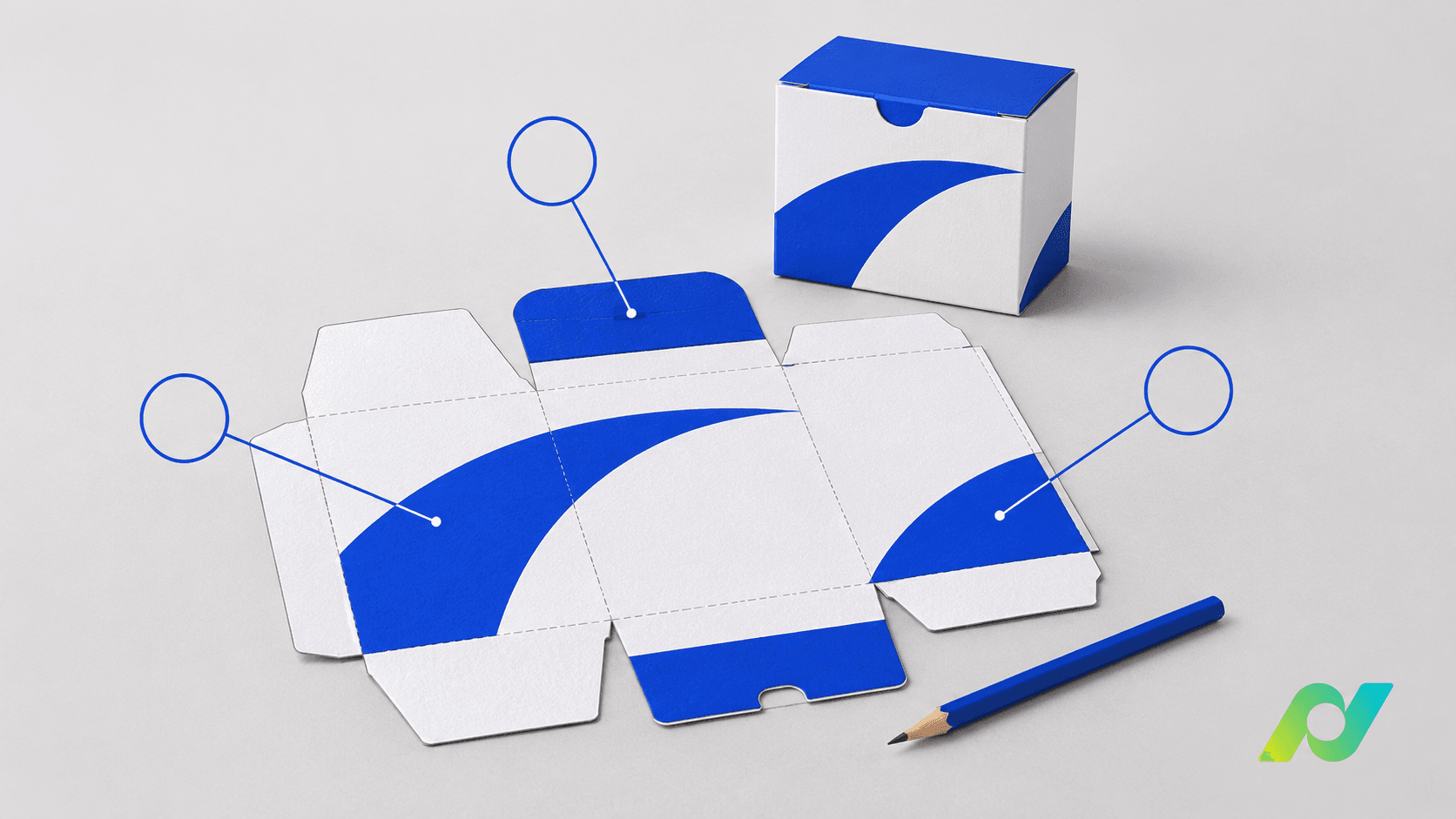
On a carton, a comment might concern the front panel, back panel or flap. In email, describing the region and including a visual reference helps avoid interpretation. When reviewing on the artwork, a marker identifies the region while the comment explains the request.
Within a label family, similar designs can conceal differences in flavor, volume or language. Identify the SKU and variant before commenting or approving. One item's approval should not extend to the others simply because they arrived in the same delivery.
For product tags, separate layout approval from data that varies between applications, where applicable. A decision about the template does not automatically establish which information belongs on each printed item. In either channel, record the scope of approval and the references used.
5. A decision needs an owner, version and history
An “OK” reply may have enough context in a short exchange. For a job involving marketing, quality, prepress and the customer, define who decides, who follows the review and which responses are still required. Being copied on an email does not establish those responsibilities.
eyeView brings together proof history and distinguishes approvers from observers. Review settings need to reflect the process agreed with the customer. When assessing the workflow, also check how decisions are tracked and how rejection or another review round is handled.
Release to the next stage should identify the checked version and its scope. If a later change is made, agree who needs to reassess it. The tool organizes the record; the team continues to define responsibilities and acceptance criteria.
6. Email can remain the starting point
Adopting eyeView approval does not require abandoning email. A practical routine uses the message to introduce the request and provide the link, while keeping comments and decisions in the proof. Explain where the customer should record each action.
If an instruction arrives through another channel, bring it into the review record and request confirmation where needed. This discipline helps prevent competing instructions in two places. Allow time to configure participants, organize files and guide first-time reviewers: the platform needs a coherent process to work well.
7. Compare the workflows on a real job
Choose packaging, a label or a tag with recurring reviews. Before sending it, define the starting version, responsible people and what constitutes completed approval. During the round, record location questions, requests to resend files and decisions that needed clarification.
Afterward, compare how easy it was to find the approved file, understand feedback and establish who decided. Use that experience to assess the benefit to your operation, without assuming a fixed reduction in turnaround or rework.
To explore visual review and artwork approval in a dedicated workflow, discover eyeView. The aim is for the customer, design and production teams to find the same reference when answering: which artwork was approved?