How to write clear comments when reviewing packaging artwork
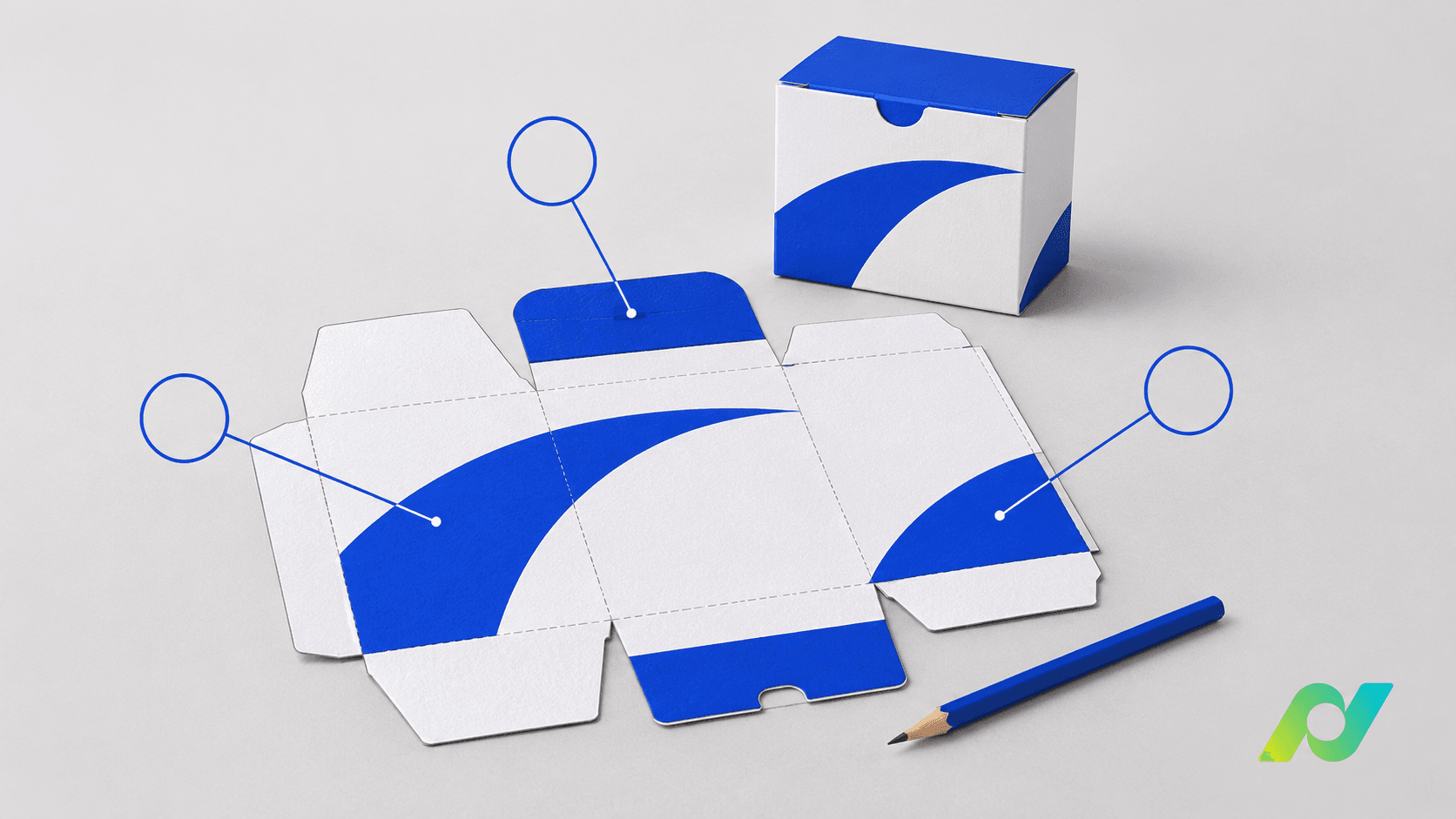
“Adjust this text,” “make it stand out” and “check the color” sound like quick comments to resolve. In practice, they leave questions for whoever receives the artwork: which passage, which result and which reference should guide the change? When the answers are scattered across conversations and files, the next round starts with interpreting the request.
A useful comment lets someone locate the issue, carry out the action and check the result. The following workflow proposes a way to write and organize feedback across design, marketing, prepress and approval. These working recommendations can be adapted to each team's routine.
1. Start with the correct version and item
Before annotating, confirm which file is open and which SKU, language and component it belongs to. A packaging family may have almost identical panels with different information. If the comment started in a screenshot, return to the corresponding file to check the context.
At the start of the round, record the version under review and the intended scope: checking copy, changing the layout or reviewing a correction. If a request relates to another item, route it to the right job. This keeps the conversation connected to the artwork that actually needs changing without relying on participants' memories.
2. Specify the location, action and reference
Try building a request from four parts: where the element is, what should change, which reference guides the action and how completion will be checked. Instead of “correct the flavor,” write: “On the front panel, replace ‘Lemon flavor’ with ‘Orange flavor’ according to the approved specification for this version; check the same wording on the side panel.”
This example is a communication structure, not a rule about label content. The actual reference should come from the product owner. Markup tools can also help identify the passage: Adobe documents features for suggesting replacements and commenting on PDF regions.
3. Separate requests that can have different outcomes
A single comment containing five changes makes it difficult to establish whether all were completed. Separate requests that require different owners, references or checks. A description replacement, for example, can be one comment, while a positioning question should have its own record.
When several occurrences belong to the same change, describe the scope: this panel only, every face or specific variants. Avoid “correct everywhere” without identifying the set. If the team groups items, retain a way to record the result of each part, including any that need clarification.
4. Distinguish corrections, questions and suggestions
The implementer needs to know whether to change something, investigate it or present an alternative. A correction specifies an already-decided result. A question seeks clarification before editing. A suggestion proposes an option that still needs the owner's acceptance.
Make the distinction in the wording itself without assuming that the tool uses those status names. “Confirm whether this element should remain” calls for an answer; “remove this element according to the approved reference” calls for implementation. For subjective visual changes, explain the intention and request a proposal. Avoid turning an initial impression into a final instruction without discussion.
5. Resolve conflicting directions before implementation
If two reviewers request incompatible outcomes for the same area, the designer should not have to guess which instruction applies. Define who consolidates the direction and record the decision where the change will be tracked.
Agree on who implements and who checks it as well. The implementer can respond with the resulting version and an explanation of the work done. The validator should be able to find the reference used and the agreed conditions for closing the issue. If a decision changes, preserve the explanation and identify which instruction was superseded. A chain of contradictory replies without an explicit conclusion remains an open question.
6. Check the corrected file before closing the comment
Marking a comment as resolved supports tracking, as shown in Adobe's guidance on comment status. In your team's process, agree that closure follows checking the result rather than simply receiving a “done” reply.
Open the new version, locate the area and compare what you see with the request. PDF comparison in Acrobat is one example of a feature that highlights file differences. With any comparison tool, confirm which versions were selected and whether the options cover the kind of change being investigated. Examine nearby differences that were outside the original request too.
7. End the round with an explicit decision
At completion, identify the checked version, accepted changes and anything still pending. Closing a discussion about one element does not, by itself, approve the entire package. Agree on which owners need to respond before releasing that stage.
eyeView Revision brings together artwork annotations, comments, file comparison and step-by-step approvals. These capabilities can support the method: identify the location, discuss the action and review the corresponding file. Content decisions and approval remain with the people responsible for the job.
A good annotation does not need to be long. It needs to let someone else understand the request and enable the team to show, in the next round, which version addressed it.


